
Mobile Guide
PokeSurvivor Mobile Guide: Touch Controls, Add to Home Screen & Save Data
Want to play PokeSurvivor on your phone? No app required—it's a free browser game. Just open the official site pokesurvivor.com on iPhone or Android and play instantly. This mobile guide covers landscape orientation, touch controls, how to add the game to your home screen, cloud save setup, and common troubleshooting tips.


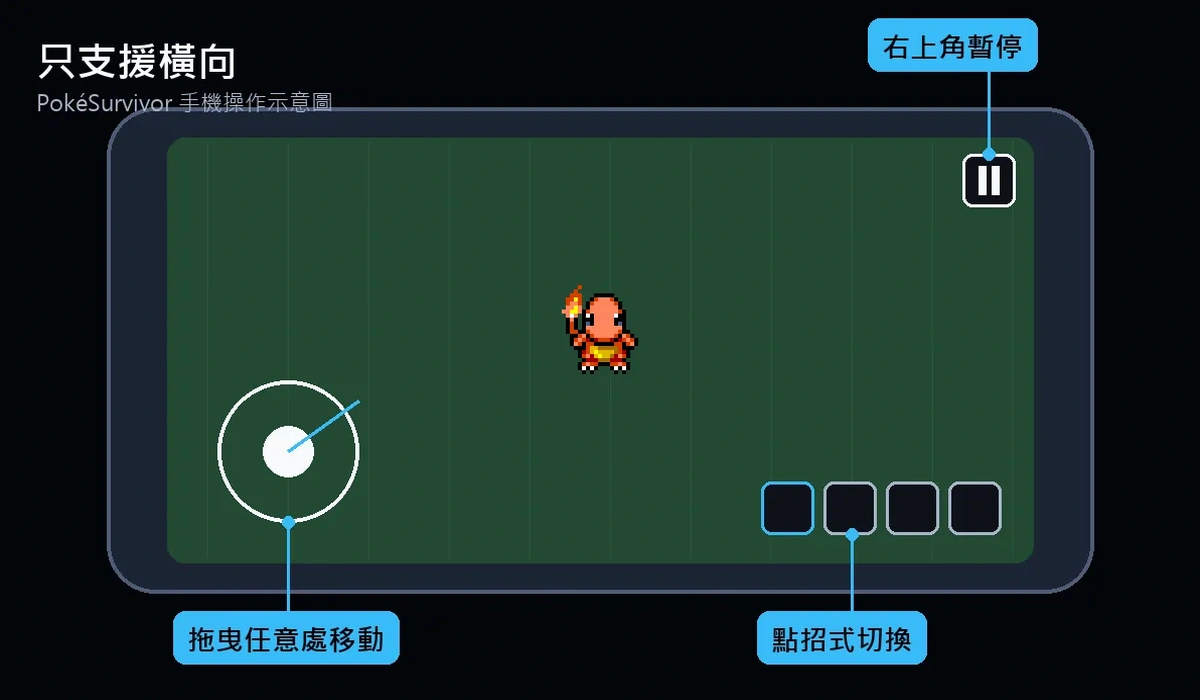
Playing in Mobile Browser: Landscape Only
According to the official guide, PokeSurvivor can be played on PC, tablet, and mobile browsers, with mobile and tablet supporting landscape orientation only. The official guide mentions virtual joystick controls and auto-quality settings. The game UI is available in English and Spanish only—this guide helps you navigate the English interface, but cannot change the game language itself. Whether you search for "PokeSurvivor mobile" or find it on social media, you're playing the same web version—there is no separate mobile game release.
Touch Controls
The most common question is how to attack: you don't—attacks are fully automatic. You only need to move and switch between your moves.
Movement
Press and drag anywhere on the screen. A virtual joystick appears where you touch.
Switch Moves
Tap a move icon directly. Your partner only uses the currently selected move; attacks fire automatically.
Pause
Tap the pause button in the top-right corner.
Upgrade
Tap one of the three cards that appear when you level up.
October 14, 2026 Update: Custom Button Placement & Fixed Joystick
Per the official news, as of October 14, 2026, you can now customize button positions in Settings → Controls → Place the buttons. Drag move buttons, the pause button, and the joystick to your preferred locations, and you can lock the joystick to a fixed position. In our experience, players with smaller hands or tablet users often find it more comfortable to lock the joystick in the bottom-left corner and place move buttons within thumb reach on the right. This is a fan suggestion—adjust to your own preference.
Add to Home Screen: Launch Like an App
The official site notes the game requires no download, but you can use "Add to Home Screen" to install an icon that launches like an app. The page is configured for fullscreen, landscape display. Below are standard browser steps—exact menu names may vary by OS version:
iPhone / iPad (Safari)
- Open pokesurvivor.com in Safari.
- Tap the Share button (bottom or top bar).
- Scroll to "Add to Home Screen," confirm the name, and tap "Add."
Android (Chrome)
- Open pokesurvivor.com in Chrome.
- Tap the "⋮" menu in the top-right.
- Select "Add to Home screen" or "Install app," then confirm.
Launching from the home screen icon follows the same save rules, so the rest of this guide applies equally.
Account, Cloud Save, and Guest Mode
The official guide explains: logging in with an account (username + password, or Google) saves your progress to the cloud, syncing across any device. Guest mode lets you start immediately but saves nothing. As of October 14, 2026, players who registered with username and password can now link their Gmail—if you forget your password, logging in with Google accesses the same account. If you plan to switch between mobile and PC, or play co-op with friends, we strongly recommend creating an account. This is the single most important tip for mobile players.
itch.io Offline Version
The developer offers a downloadable HTML5 offline package on the itch.io page, with instructions to "unzip and double-click index.html." The offline version is single-player only, with saves stored in your browser. Co-op, cloud saves, and leaderboards are only available on the pokesurvivor.com online version. This package is primarily for PC—on mobile, using the online version with Add to Home Screen is more convenient.
No App Store / Google Play Version—Beware of Fake Apps
Mobile Co-op Play
Co-op mode supports up to 4 players and requires an account. Add friends by username, invite them to a room, and the host starts the game. XP is shared, and when leveling up, each player must pick a card—the game waits for everyone to choose. Downed teammates can be revived if someone stands next to them for 3 seconds. Important notes: pausing in multiplayer does not stop the game; if the host switches tabs, all players are paused; if the host leaves, the run ends. When hosting on mobile, avoid switching to other apps.
The official site notes that co-op uses browser-to-browser connections (WebRTC, similar to video calls), so teammates may see your IP address—only play with people you know. For room settings and co-op strategies, see the co-op mode guide.
Mobile Performance & Troubleshooting (Fan Tips)
These tips are from our real mobile play experience, not official documentation:
- Close other browser tabs and background apps before starting to reduce heat and frame drops.
- Launch from the home screen icon for fullscreen play without the address bar.
- The official settings include auto-quality; if you still experience lag, check quality options in settings.
- Late-game enemy swarms and effects can heat up phones—consider plugging in a charger and removing thick cases.
- Use stable Wi-Fi for co-op mode.
Screen won't rotate to landscape
The game only supports landscape. If your phone won't rotate when you turn it, screen rotation lock is usually on. On iPhone, open Control Center and turn off "Portrait Orientation Lock"; on Android, enable "Auto-rotate" in Quick Settings. After turning off the lock, rotate your phone again or refresh the page.
Prevent screen dimming or sleep during play
Survivor-like mobile games often require only one-finger dragging, which some phones misinterpret as inactivity and dim the screen. If your screen frequently dims mid-game, temporarily increase the "Auto-Lock" or "Screen timeout" duration in settings, then restore it after playing.
Battery saver mode and browser version
Battery saver mode typically limits performance and refresh rate, making late-game enemy swarms lag even worse—turn it off before playing. For browsers, use the system default or mainstream browsers (Safari on iPhone, Chrome on Android) and keep them updated. If one browser shows issues, switching to another usually helps diagnose browser-specific problems.
Once your mobile setup is complete, the next step is choosing a partner. When you're moving with one finger, long-range auto-tracking moves are easier to manage—see recommended starters for mobile play. For late-game strength rankings, check the Pokémon tier list. When you survive past 1:15 and mysterious rifts start appearing, pair this with the legendary rift guide. This mobile guide handles device setup—card choices and team building are covered in those other guides.
Frequently asked questions
Is there a PokeSurvivor mobile app?
No. All official sources we checked confirm there is no App Store or Google Play version. The only official site is pokesurvivor.com. You can play on your mobile browser without downloading anything—store apps asking for downloads or payment are not official.
How do I add PokeSurvivor to my iPhone home screen?
Open pokesurvivor.com in Safari, tap the Share button, scroll to "Add to Home Screen," confirm the name, and tap "Add." The icon on your home screen will open the same official web game.
Will my mobile save data be lost?
If you log in with an account (username + password, or Google), your progress is saved to the cloud and syncs across any device. Guest mode saves nothing. We strongly recommend creating an account if you plan to play long-term or switch devices.
Can I play in portrait mode on mobile?
No, mobile and tablet only support landscape orientation. If your screen does not rotate, check that screen rotation lock is turned off in your device settings.
Can I play co-op with friends on mobile?
Yes. Co-op mode supports up to 4 players and requires an account. When hosting on mobile, avoid switching to other apps—the host switching tabs pauses the game for everyone. See the "Mobile Co-op Play" section for details.
How We Wrote This Guide
This PokeSurvivor mobile guide draws game information from the official guide, official news, the itch.io page, and the official GitHub source code. Tips and recommendations are fan opinions. Last verified: October 16, 2026. For complete beginner instruction, see the full how-to-play tutorial.